
The Function Editor
The function editor is where you write, review, and deploy your function code. It opens when you click a function card from the grid.
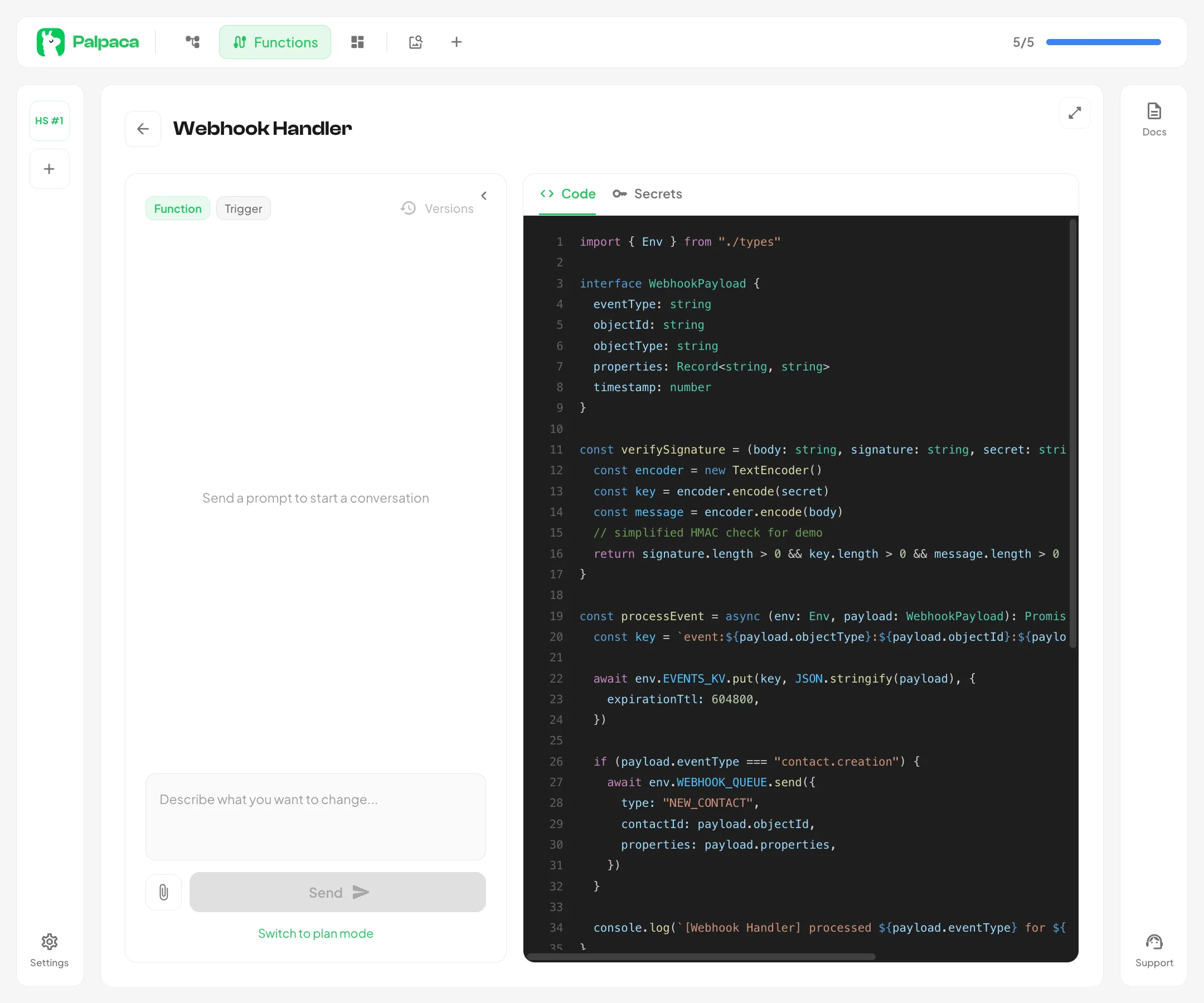
Layout
Section titled “Layout”The editor is split into two panels:
- Agent chat (left) — an AI-powered assistant that writes and modifies your function code based on your prompts
- Code & secrets (right) — a tabbed panel showing your function source code and environment secrets
You can collapse the agent panel using the arrow button to focus on the code view. Click the expand button on the left edge to bring it back.
Code Tab
Section titled “Code Tab”The Code tab displays your function’s TypeScript source with syntax highlighting. The code is read-only in this view — all changes are made through the AI agent. The agent reads your current code, understands your request, and writes the updated version.
As the agent works, you will see the code update in real time after each tool call.
Secrets Tab
Section titled “Secrets Tab”The Secrets tab lets you manage environment variables for your function. See the Managing Secrets article for details.
Header Actions
Section titled “Header Actions”When editing a function, a floating action bar appears at the top center with two buttons:
- Deploy — deploys the current code (see Deploying Functions)
- Delete — permanently removes the function and its deployed script
Metadata Chips
Section titled “Metadata Chips”At the top of the agent panel, chips show the function context:
- Function — confirms you are in the function editor
- Trigger or Scheduled — the function type
The agent uses this context to write the correct handler pattern for your function type.