
Schema Overview
The Schema page lets you explore your HubSpot CRM schema and use an AI agent to plan or build schema changes. It gives you a complete view of your objects, properties, associations, and pipelines — all in one place.
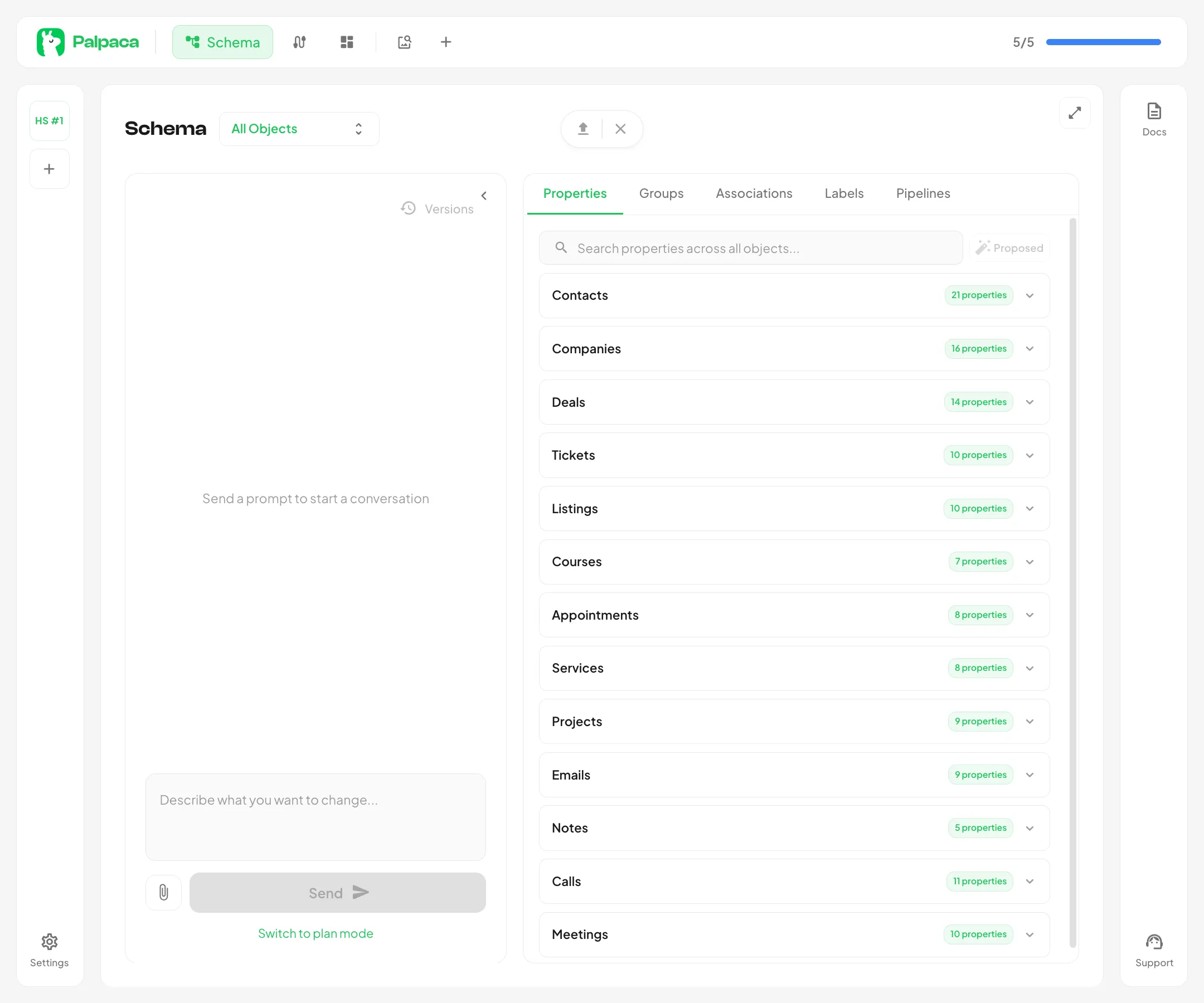
Page Layout
Section titled “Page Layout”The schema page is split into two panels:
- Agent chat (left) — an AI-powered assistant that can analyze your schema, suggest improvements, and make changes on your behalf
- Schema viewer (right) — an interactive browser for exploring objects, properties, groups, associations, and pipelines
Selecting an Object
Section titled “Selecting an Object”Use the object selector dropdown at the top of the schema viewer to choose which object to inspect. Objects are grouped into standard HubSpot objects (contacts, companies, deals, tickets) and custom objects you have created.
Viewing Modes
Section titled “Viewing Modes”The schema viewer has two modes:
- Single-object mode — focuses on one object at a time, showing its properties, groups, associations, labels, and pipelines
- All Objects mode — loads every object in your portal and displays a cross-object view, useful for reviewing your entire data model at once
Content Tabs
Section titled “Content Tabs”Once you select an object (or switch to All Objects mode), the viewer organizes information into five tabs:
| Tab | What It Shows |
|---|---|
| Properties | All properties on the object with types, groups, and attributes |
| Groups | Property groups and which properties belong to each |
| Associations | Relationships between the current object and other objects |
| Labels | Named association labels that describe specific relationship types |
| Pipelines | Pipeline stages for objects that support them (deals, tickets, etc.) |
Each tab is covered in detail in the next article.