
Navigating Your Schema
The schema viewer lets you drill into every detail of your CRM schema. This article walks through the object selector and each of the five content tabs.
Object Selector
Section titled “Object Selector”The dropdown at the top of the viewer lists all objects in your portal. Type to search by name. Objects are split into two groups:
- Standard objects — contacts, companies, deals, tickets, and other HubSpot defaults
- Custom objects — objects you or your team have created
Select an object to load its schema, or switch to All Objects mode to see everything at once.
All Objects Mode
Section titled “All Objects Mode”All Objects mode loads every object in your portal and displays a combined view. Because this can involve many API calls, you will see a progress indicator while objects load. Once loaded, you can browse across objects and compare their structures side by side.
Properties Tab
Section titled “Properties Tab”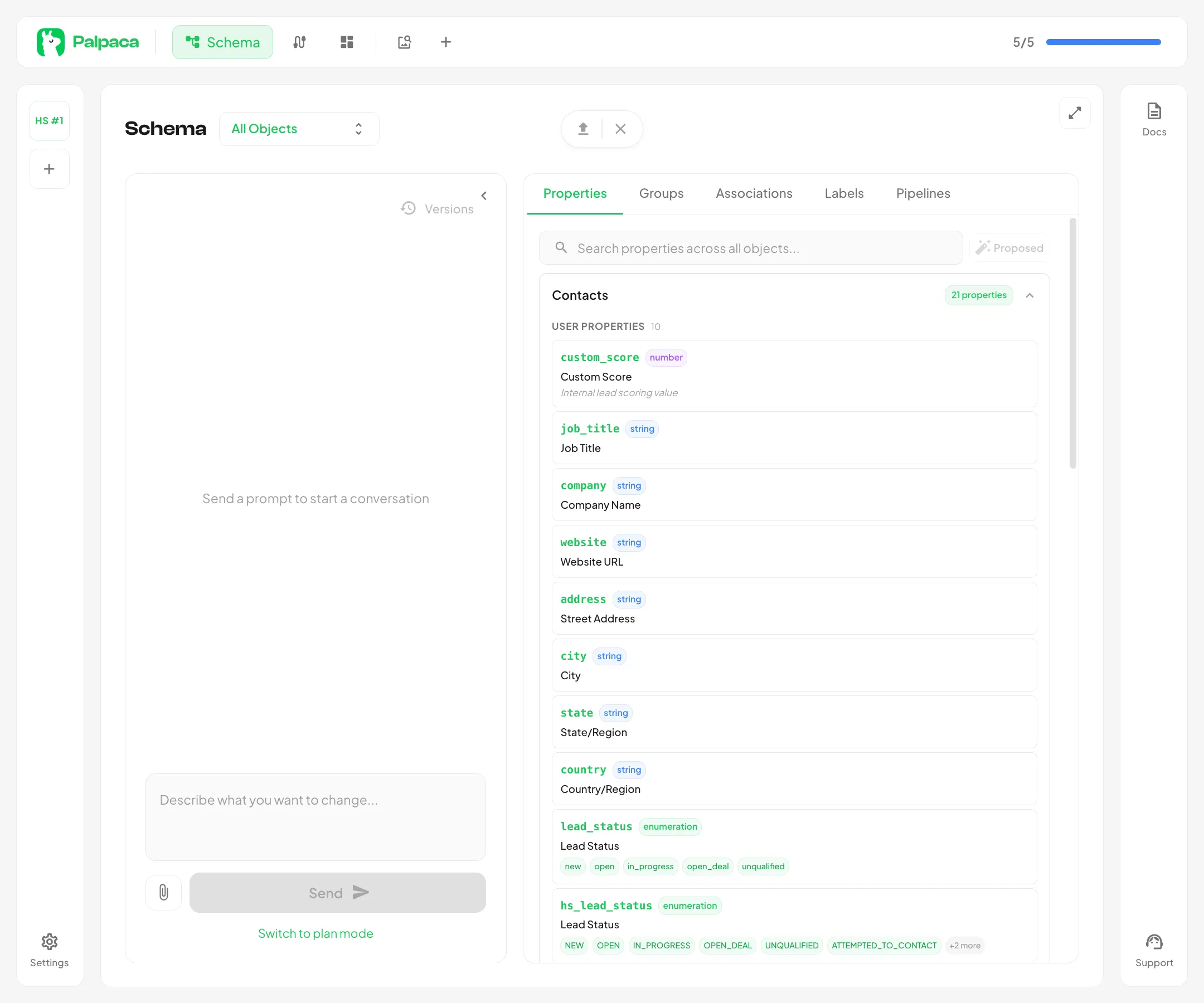
The Properties tab lists every property on the selected object. You can:
- Search by property name or label
- Filter by group to narrow down to a specific property group
- Filter unique properties to see only those marked as unique identifiers
Properties are organized into expandable sections:
- User properties — created by your team
- Key properties — important default fields (name, email, etc.)
- System properties — managed by HubSpot internally
Expand a property to see its details:
| Attribute | Description |
|---|---|
| Type | The data type (string, number, enumeration, date, datetime, bool) |
| Field type | How it renders in HubSpot (text, select, checkbox, etc.) |
| Read-only | Whether the property can be edited |
| Calculated | Whether HubSpot computes the value automatically |
| Unique | Whether values must be unique across records |
| Options | For enumerations, the list of allowed values |
| Referenced objects | For properties that reference other object types |
Groups Tab
Section titled “Groups Tab”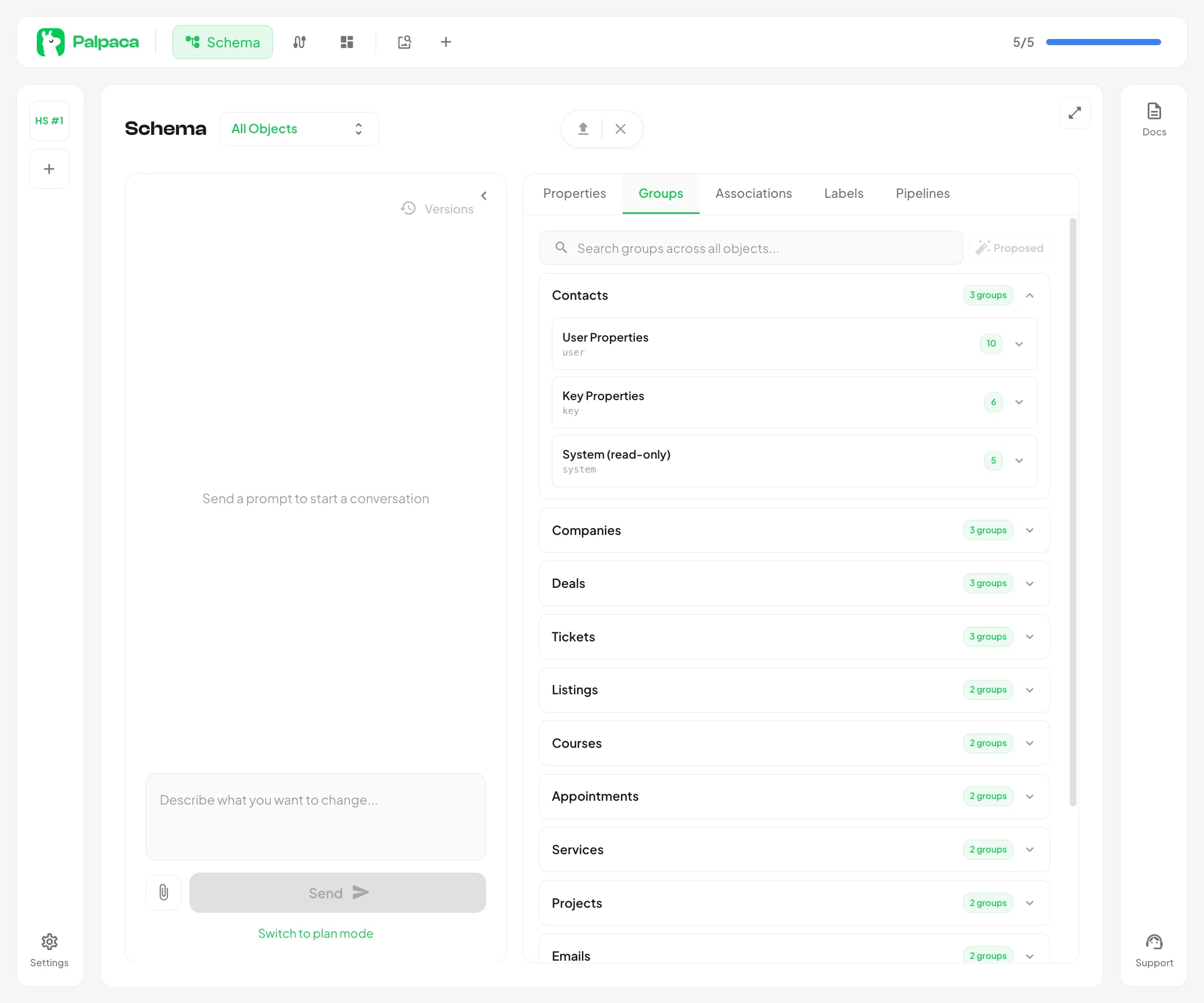
The Groups tab shows all property groups on the object. Each group card displays the group name and a count of its properties. Expand a card to see the full list of properties in that group. Use the search bar to find groups by name.
Associations Tab
Section titled “Associations Tab”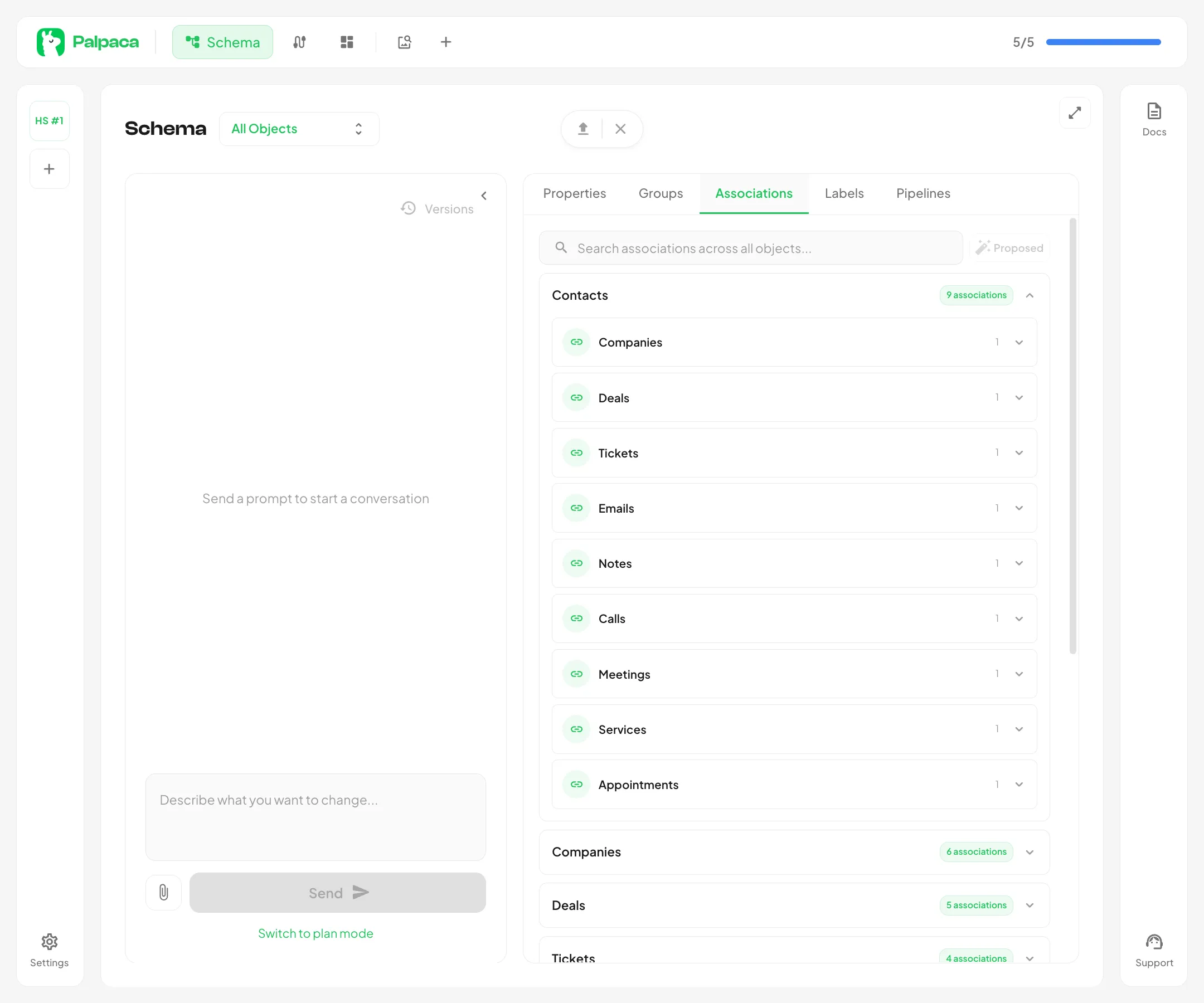
The Associations tab lists all relationships between the current object and other objects. Each association shows:
- Target object — the object on the other end of the relationship
- Association type — how the two objects are linked
- Category — whether the association is HubSpot-defined (built-in) or user-defined (custom)
Labels Tab
Section titled “Labels Tab”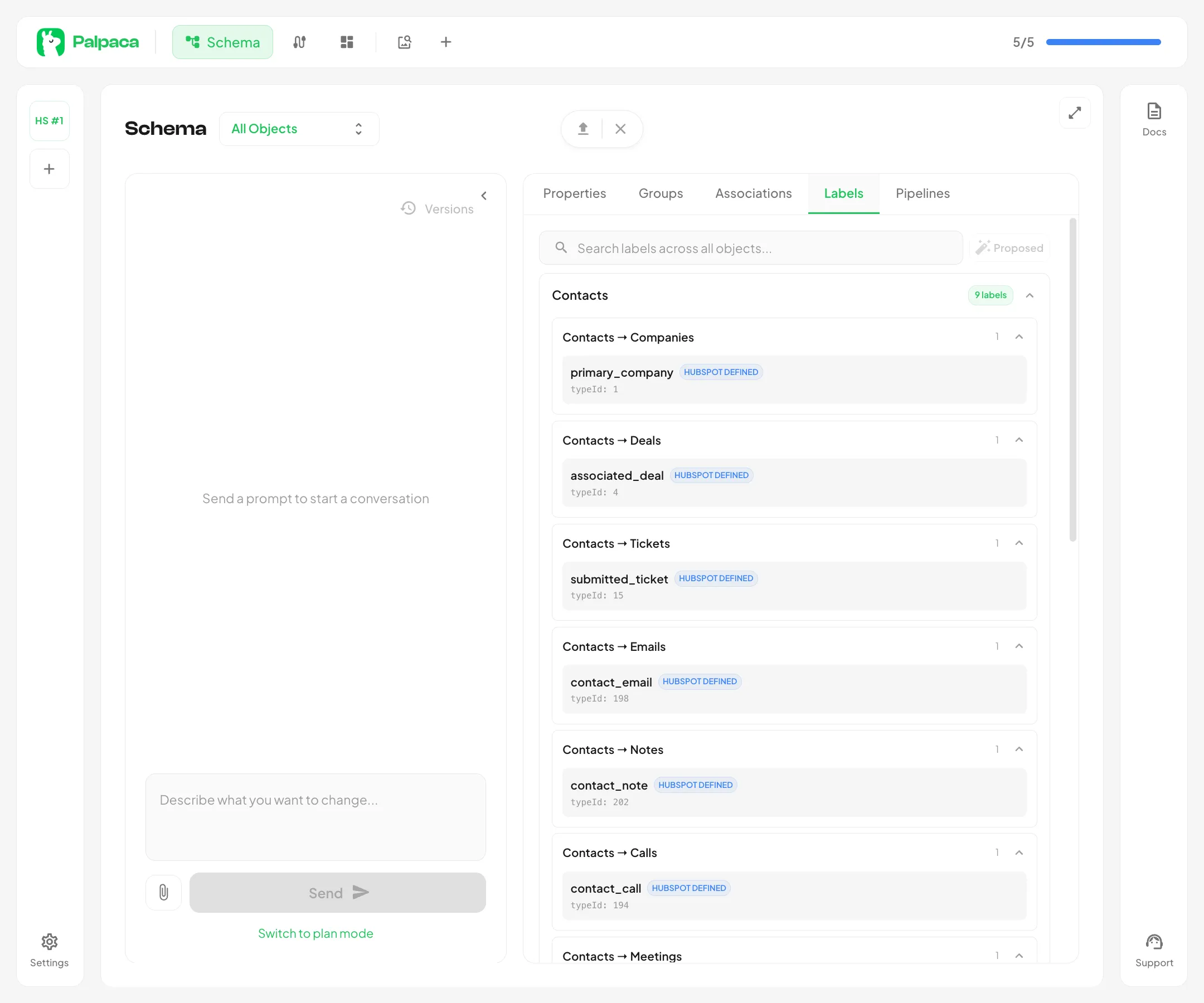
The Labels tab shows named association labels — semantic tags that describe the nature of a relationship. For example, a contact-to-company association might have labels like “Primary” or “Former Employee.”
Each label displays a source-to-target arrow showing the direction of the relationship. Use the filter to narrow down labels by source or target object.
Pipelines Tab
Section titled “Pipelines Tab”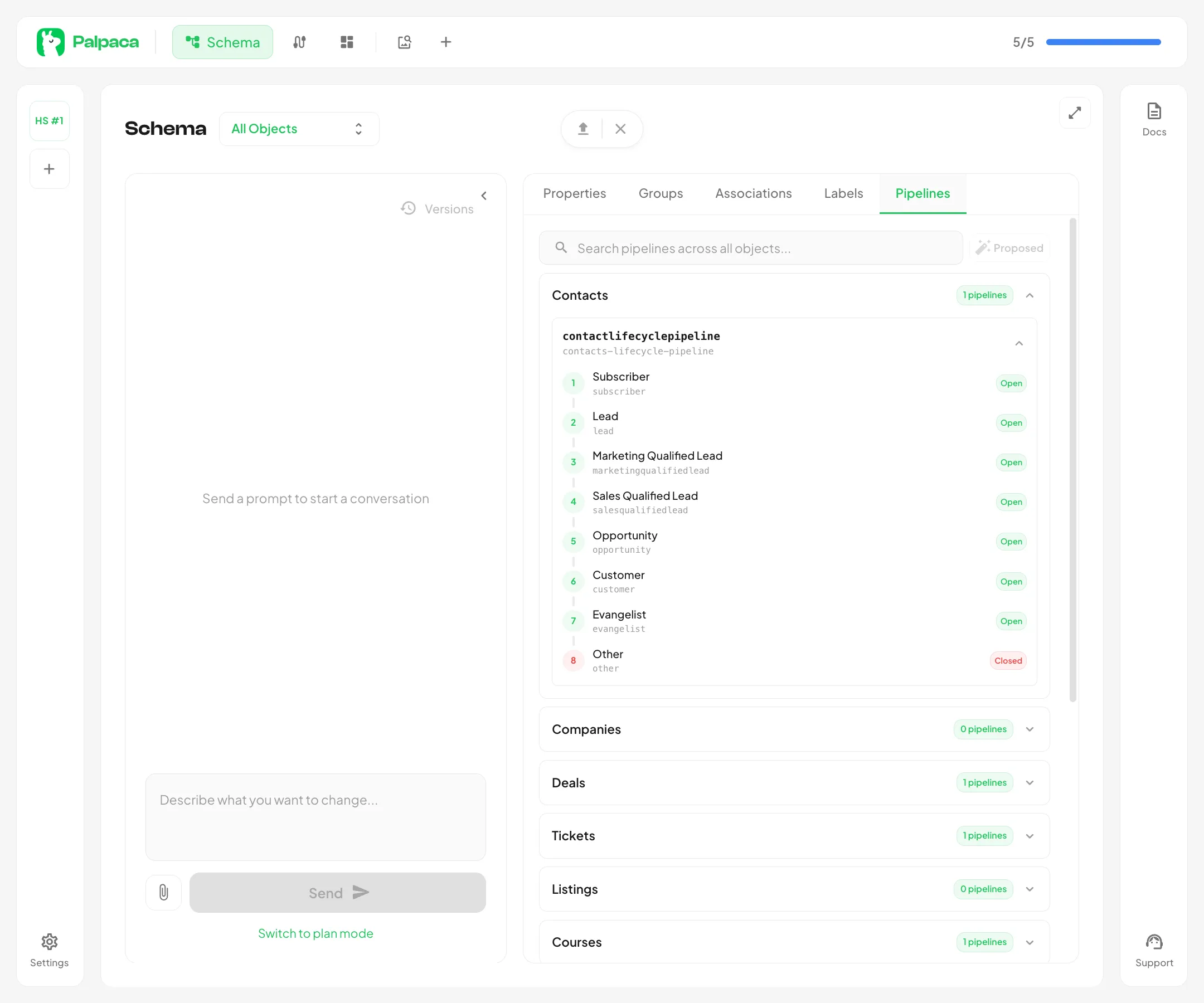
The Pipelines tab appears for objects that support pipelines (typically deals and tickets). Each pipeline card shows:
- Pipeline name — the name assigned in HubSpot
- Stages — listed in sequential order, each showing its label and whether it is an open or closed stage
Use the search bar to find pipelines by name.