
Using the Schema Agent
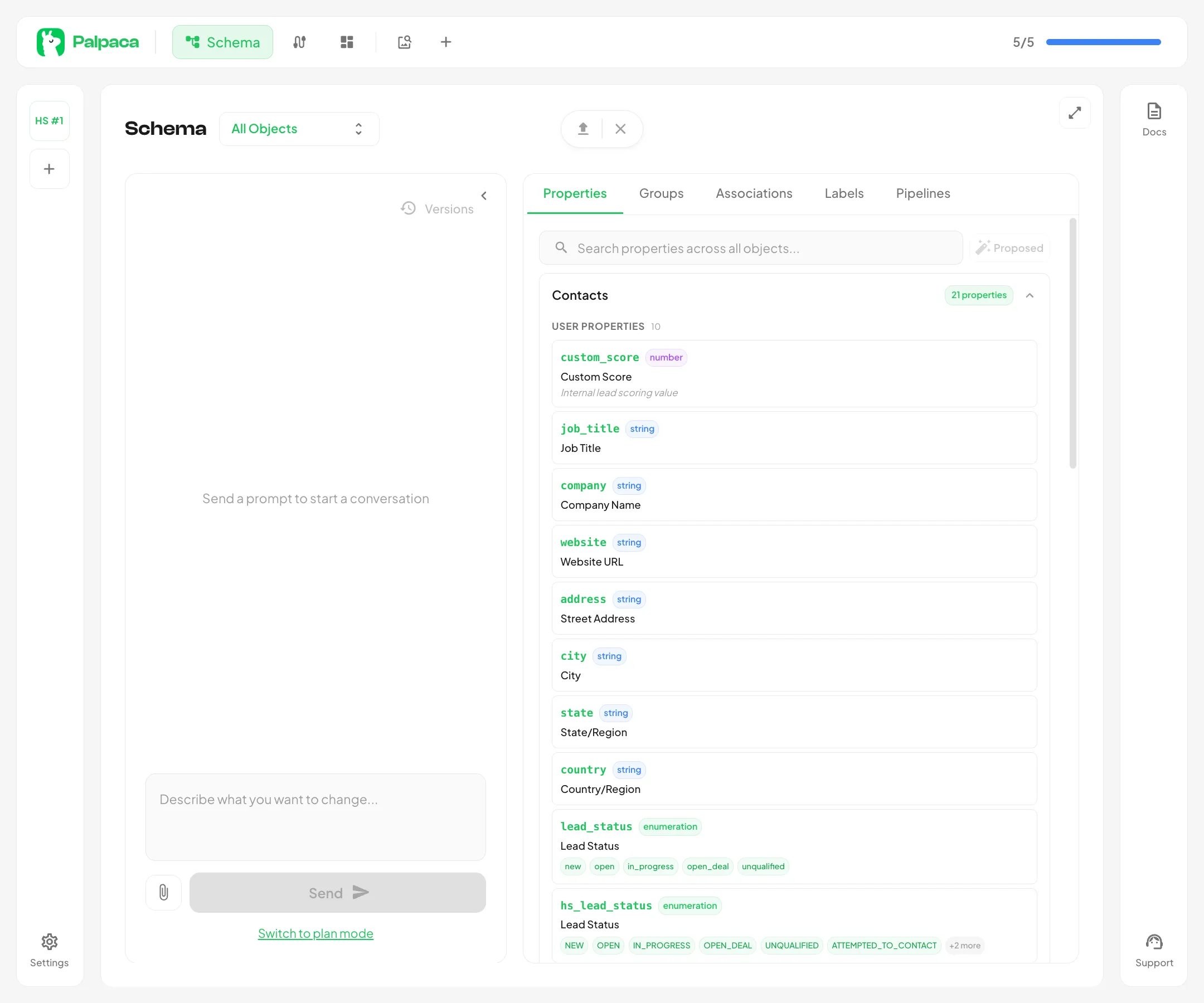
The left panel of the schema page is an AI agent chat. You can ask it questions about your schema, request analysis, or have it propose and implement changes.
Sending Prompts
Section titled “Sending Prompts”Type your message in the input at the bottom of the chat panel and press Enter or click the send button. The agent will analyze your schema and respond with insights, recommendations, or proposed changes.
Single-Object Mode
Section titled “Single-Object Mode”When you have a specific object selected in the schema viewer, the agent focuses its analysis on that object. Prompts like “What properties could be improved?” or “Suggest missing associations” will be scoped to the selected object.
All Objects Mode
Section titled “All Objects Mode”Switch to All Objects mode to let the agent analyze your entire data model. This is useful for cross-object analysis — finding missing associations, reviewing naming consistency, or identifying redundant properties across objects.
Attaching Images
Section titled “Attaching Images”You can attach images to your messages for additional context. This is helpful when you want to share a diagram, a screenshot of your CRM, or a mockup of a proposed schema change.
Conversation History
Section titled “Conversation History”Your conversation history is preserved as you navigate between objects. Scroll up to review previous messages and responses. The agent retains context from earlier in the conversation, so you can build on previous prompts without repeating yourself.
Draft Persistence
Section titled “Draft Persistence”Unsent messages are auto-saved between sessions. If you navigate away from the schema page or close the browser, your draft will be waiting when you return.