
Appearance
Palpaca supports light and dark color themes. You can choose the one that works best for your environment or let the app follow your operating system preference.
Changing the Theme
Section titled “Changing the Theme”- Click the gear icon at the bottom of the left sidebar to open settings
- At the bottom of the settings panel, find the theme toggle with three options: System, Light, and Dark
- Click your preferred option
The change takes effect immediately — no page reload required.
Theme Options
Section titled “Theme Options”| Option | Behavior |
|---|---|
| System | Follows your operating system’s light or dark mode setting. If your OS switches automatically at sunset, Palpaca switches with it. |
| Light | Always uses the light theme regardless of OS settings |
| Dark | Always uses the dark theme regardless of OS settings |
Dark Mode
Section titled “Dark Mode”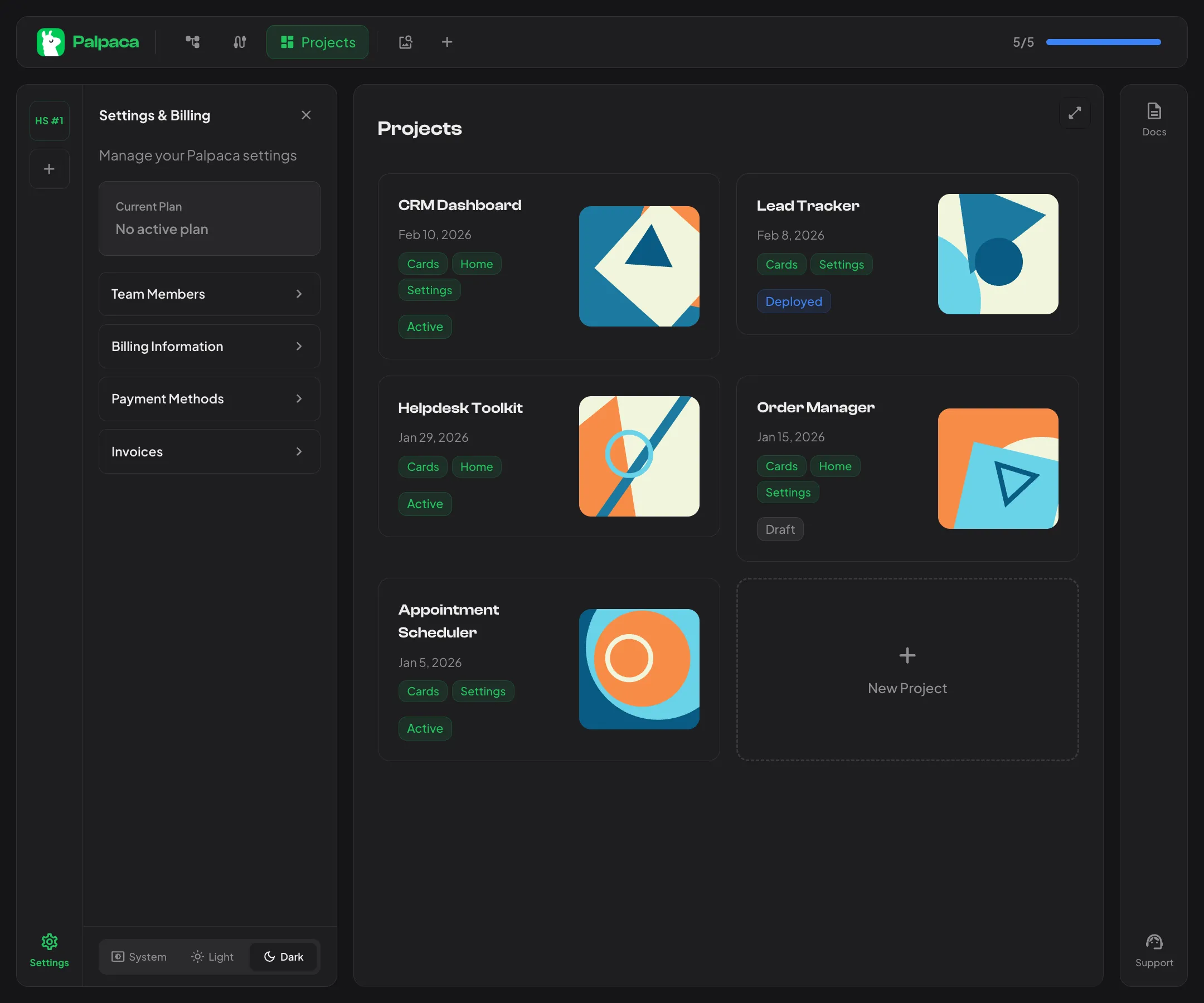
Dark mode applies a dark background and adjusted colors across the entire interface — the sidebar, project cards, editors, schema viewer, and all panels. It is designed for comfortable use in low-light environments and reduces eye strain during extended sessions.
Persistence
Section titled “Persistence”Your theme preference is saved locally in your browser. It persists across sessions, so you only need to set it once per device.